Managing Interpreters
Positron is designed to support multiple R and Python interpreter sessions. This enables workflows that span multiple environments, and allows you to switch between them easily within a single workspace.
Positron has two types of interpreter sessions:
- Console sessions drive the Console pane. Create and manage them from the Interpreter picker or the Console pane.
- Notebook sessions are tied to a specific notebook. Create and manage them from the notebook editor’s Kernel Selector.
The Interpreter picker lists every running interpreter session so you can manage them all from one place.
At any given time, one interpreter session is designated as the active interpreter session. This is the language environment currently in use for interactive and language-specific features within the IDE.
Interpreter sessions
This section covers behaviors that apply to all interpreter sessions, regardless of type. For workflows specific to a session type, see Console sessions or Notebook sessions.
Active interpreter session
The active interpreter session is the language environment currently in use. It provides the execution context for various panes within the IDE such as the Console, Variables, Plots, and Editor panes. Language-specific features such as code execution, completion, and diagnostics are all scoped to the active interpreter session.
The active interpreter session can always be identified in the Interpreter picker located in the top right. The Interpreter picker also shows the current status of the session.
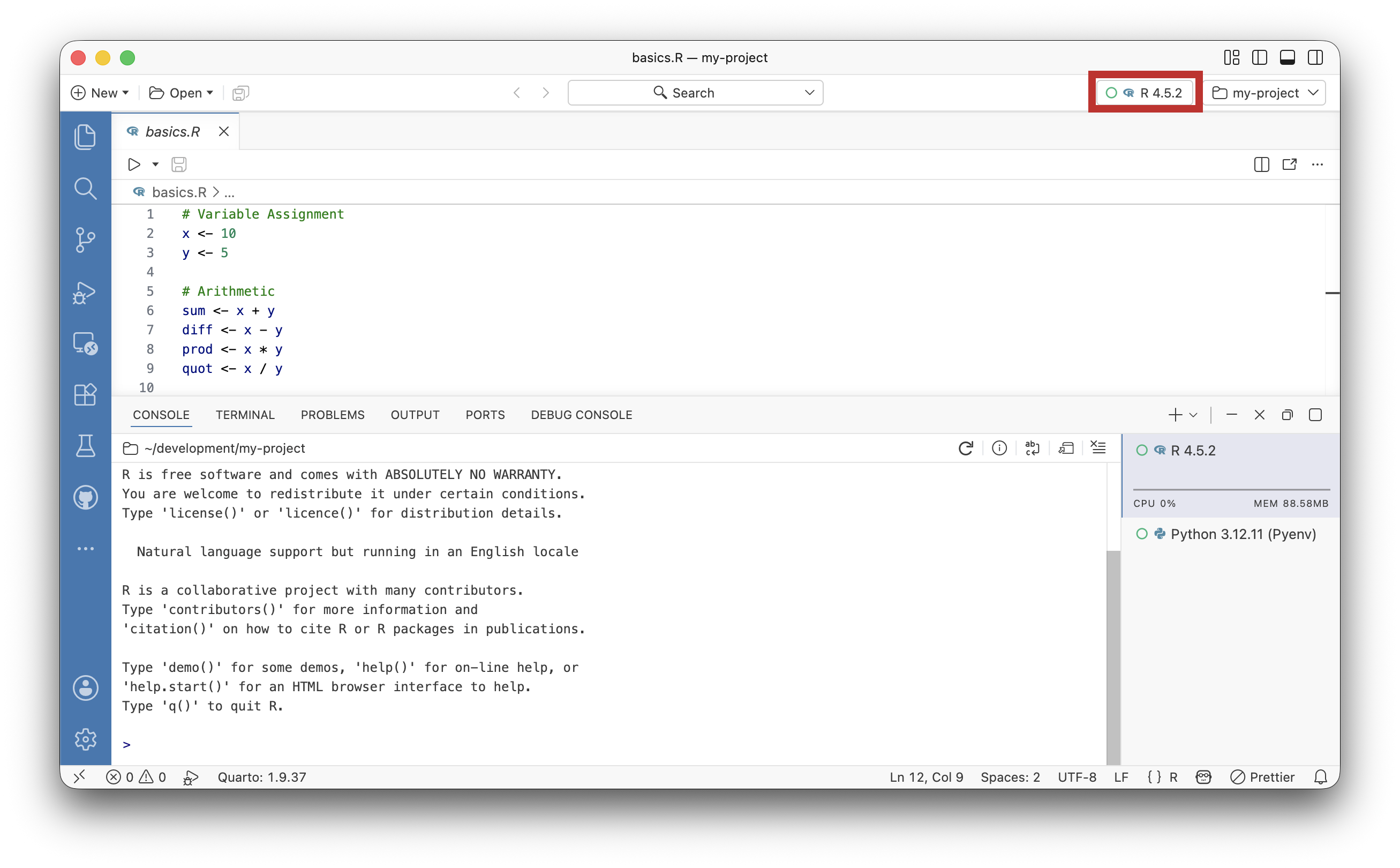
When working with multiple sessions for the same language, check which interpreter session is active before executing code. The active session name is always visible in the Interpreter picker.
Language-specific features
The active interpreter session drives several language-specific features:
Code completion: The active interpreter session provides the context for code completions in the Editor pane. To get accurate completions, ensure the appropriate interpreter session for the language of your document is active.
Diagnostics: Error checking and code analysis use the active session environment. Diagnostics include syntax errors, import issues, and variable references. The active interpreter session determines which packages and variables are available for diagnostic checks.
Interpreter session status
Every interpreter session has an execution status. The Console pane list displays a status indicator next to each console session, and the Interpreter picker displays a status indicator next to the active session’s name regardless of its type.
An interpreter session can be in one of the following states:
- Idle (green): The interpreter session is available to run code
- Busy (blue):: The interpreter session is busy with a task
- Shutdown (red): The interpreter session has shutdown

View running interpreter sessions
You can view running console sessions from the Console pane. Alternatively, you can select the Interpreter picker to view all running interpreter sessions, grouped into a Console Sessions list and a Notebook Sessions list.
Change the active interpreter session
Select a console session from the list in the Console pane to make it the active interpreter. Alternatively, you can select the Interpreter picker and then select a session from the list:
- Selecting a session from the Console Sessions group focuses the Console pane and makes that console session active.
- Selecting a session from the Notebook Sessions group focuses the editor tab for the associated notebook and makes that notebook session active.
You can also change the active interpreter session by running the Interpreter: Select Session command from the Command Palette.
Console sessions
A console session drives the Console pane and runs code that you execute from documents in the Editor pane.
Create a console session
Select the Interpreter picker and choose New Console Session… to see a list of all the registered interpreters. You can also bring up the list by running the Interpreter: Start New Console Session command from the Command Palette. Select an interpreter from the list to start a console session for it.
Alternatively, you can select the icon next to the icon in the Console pane. The dropdown lists the most recently used interpreters. The Start Another… option will display a list of all the registered interpreters. Select an interpreter from either list to start an instance.
You can select the icon to create a new console session for the currently active interpreter.
Documents in the Editor pane
When you execute code from a document in the Editor pane, Positron runs it in a console session of the matching language. Documents do not bind to a specific console session.
Positron picks the console session to run in based on the following priority:
- Active console session compatibility: If the active console session matches the document language, Positron uses that session.
- Fallback selection: If the active session is not a console session of the document’s language, Positron uses the most recently created console session for the language.
- New session creation: If no console session exists for the document language, Positron starts one. See the Interpreter startup guide for information on how Positron handles startup for you.
Delete a console session
When you delete a console session, the state of the session will be lost, including any variables you’ve defined.
Select the icon when holding the pointer over the Console pane list to shut down and dispose of the session.
Restart a console session
When you restart a console session, the session and variables state is cleared.
Select the icon from the Console action bar to restart a session. You can also restart whichever interpreter session is currently active by running the Interpreter: Restart Active Interpreter Session command from the Command Palette.
Rename a console session
Use descriptive names to distinguish between console sessions for the same interpreter version.
Right-click a console session from the Console pane list and select the Rename… option.
You can also rename a session by running the Interpreter: Rename Active Interpreter Session command from the Command Palette while a console session is active.
View console session metadata
Select the info icon from the Console action bar to view information about the active console session.
The dialog displays the following information about the active console session:
- Name: The display name of the console session, which you can customize by renaming a session.
- Id: The unique identifier assigned to the session by Positron.
- Status: The current execution status of the interpreter.
- Interpreter path: The file system location of the interpreter executable.
- Interpreter source: The method used to discover the interpreter (for example, system PATH, conda environment, or manual configuration).
The popup includes shortcuts to relevant output channels for the session. Select one to view the logs for that channel.
Notebook sessions
Notebook sessions run the code from a Jupyter Notebook’s cells and are tied to the notebook file. To manage a notebook session, use the Kernel Selector and the restart icon in the notebook editor’s action bar. Closing the notebook shuts down its session.
For more on working with notebooks, see: