Legacy Notebook Editor
You can create and edit .ipynb files in Positron just as you would in other editors.
For a general introduction to working with Jupyter Notebooks, see the VS Code Jupyter Notebooks documentation.
Looking for integrated AI assistance, data exploration, and improved data science workflows? Try the Positron Notebook Editor, in public beta. Give it a try and share your feedback to help us build the best experience together!
Setting up your environment
Positron comes bundled with Jupyter kernel support for R and Python. Once you have configured a Python or R environment for Positron, you do not need to install any additional dependencies into your environment before using a notebook.
If an environment installed on your computer is not available in Positron, you may want to read more about how Positron discovers Python installations and R installations.
Selecting a notebook kernel
When you first open a Jupyter Notebook, Positron starts a notebook session and automatically selects an interpreter based on the notebook’s language, the current workspace, and your configuration. The interpreter used by the notebook is visible in the Kernel Selector in the notebook editor action bar.
Each notebook session belongs to one notebook editor. Closing the notebook editor shuts down the session.
When a notebook session is active, the Interpreter picker shows the notebook filename. This signals that a notebook, not a console, is currently active. To see the runtime backing the notebook, check the Kernel Selector in the notebook editor action bar.
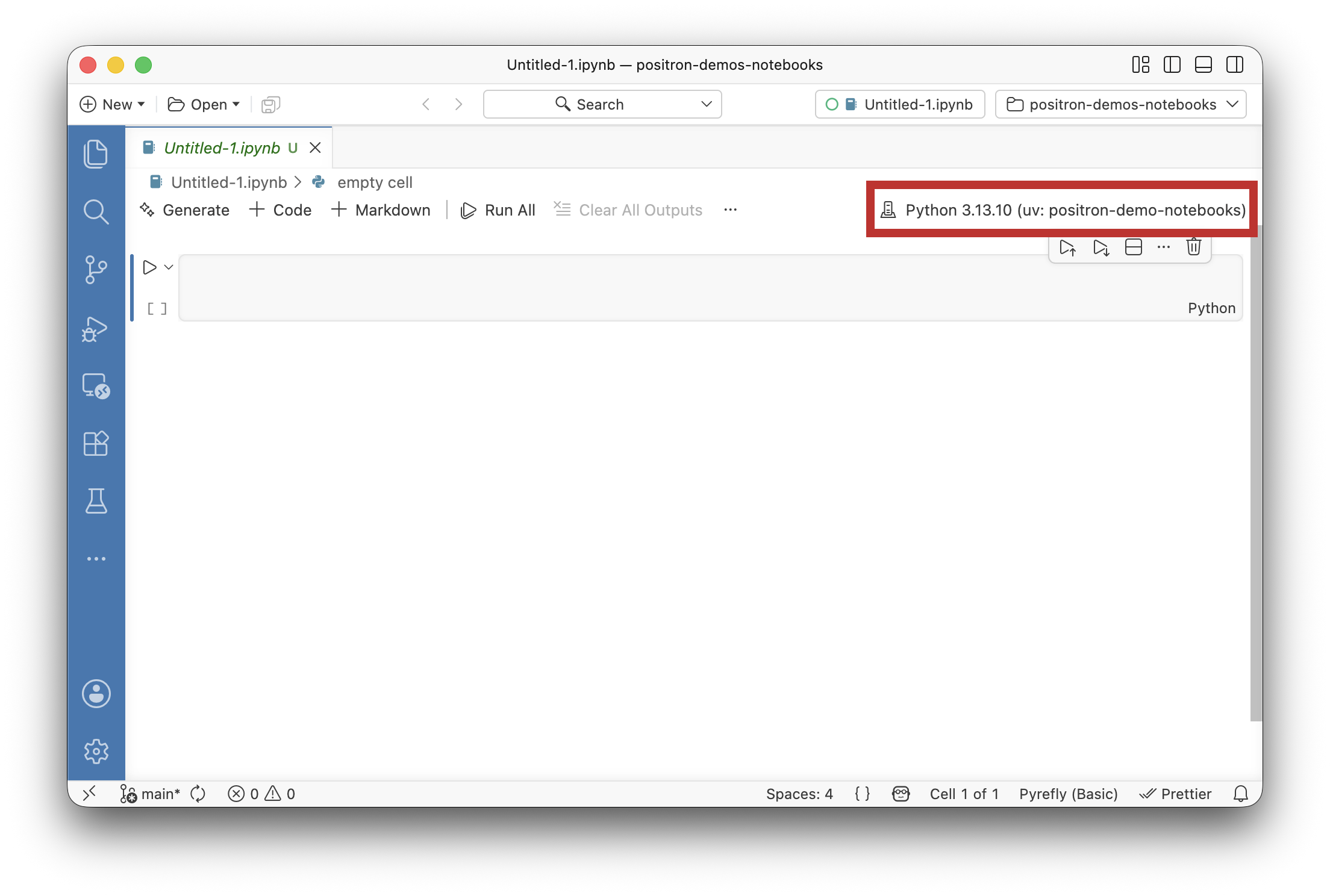
You can select a different interpreter for the notebook by selecting the Kernel Selector button in the notebook editor action bar or by running the Notebook: Select Notebook Kernel command from the Command Palette.
Customization
- To set the default working directory for a notebook, use the
notebook.workingDirectorysetting.